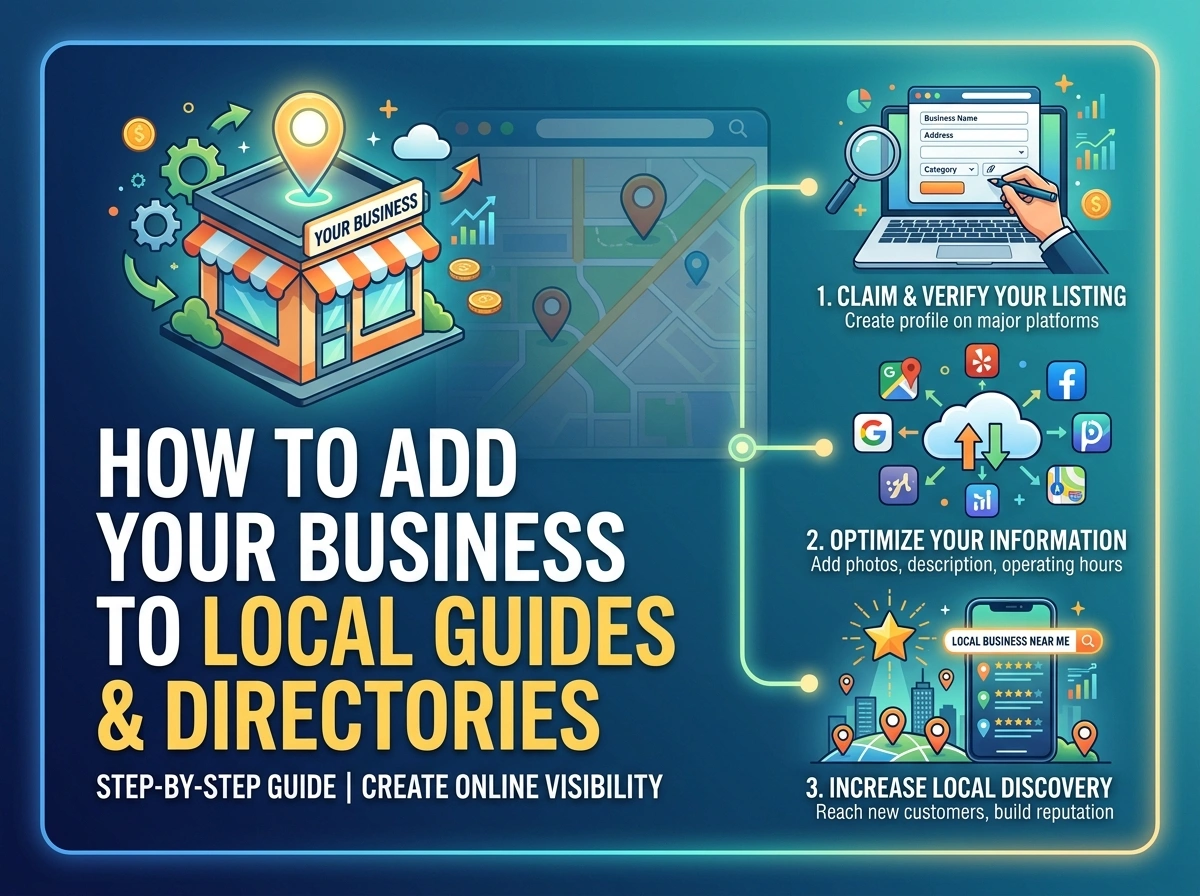
You searched for how to get your business listed in Local Guides, but here is what Google does not make obvious: the Local Guides program is for individual reviewers, not businesses. Your shop cannot join Local Guides. What you can do is get listed on Google Maps so that Local Guides find you, review you, and help your business show up in local searches.
This guide walks through adding your business to Google Maps, claiming and verifying your profile, attracting reviews from active Local Guides, and expanding your presence across other directories that matter for local visibility.
What Google Local Guides is and who qualifies
To get your business listed where Google Local Guides can see, review, and interact with it, you create and verify a Google Business Profile. The Local Guides program itself is for individual people, not businesses. Local Guides discover, add, and review businesses that are already active on Google Maps, so your job is to make sure your business shows up there.
Google Local Guides is a community program where individuals earn points for contributing to Google Maps. Members write reviews, upload photos, answer questions about places, and correct outdated business information. Each contribution earns points that unlock levels and occasional perks like extra Google Drive storage.
Only personal Google accounts qualify. Business accounts and contributions made from business pages do not count toward Local Guides status. This distinction matters because many business owners search for ways to join Local Guides, expecting a signup page for their shop. That page does not exist.
What Local Guides actually contribute:
-
Reviews: Written feedback on places they visit
-
Photos: Images of storefronts, interiors, menus, products
-
Place edits: Correcting business hours, adding missing locations, updating contact details
-
Q&A answers: Responding to questions other users ask about a place
Why businesses cannot join Google Local Guides directly
Google prohibits business accounts from participating in Local Guides. Contributions made to promote your own business violate program guidelines and can result in removal of those contributions.
The rule exists because Local Guides is designed to provide unbiased, user-generated content. If businesses could earn points by reviewing themselves, the entire system would lose credibility. So if you searched this query hoping to find a business signup page, that option simply is not available.
How to become a Google Local Guide as a business owner
You can still participate in Local Guides using a personal Google account separate from your business profile. Many business owners do this to understand how the system works from the inside.
Here is the catch: you cannot review or edit your own business. Google's guidelines explicitly prohibit this. However, contributing reviews and photos for other local places builds familiarity with how customers interact with listings. You will see firsthand what makes a profile stand out and what prompts people to leave reviews.
How to add your business to Google Maps so Local Guides can find it
Getting listed on Google Maps is how your business becomes visible to Local Guides and customers searching nearby. Once your business appears on the map, anyone can find it, review it, and add photos. The process takes about ten minutes, though verification can take longer.
Step 1: Sign in to Google Maps with your owner account
Use the Google account you want to manage the business. This can be your personal Gmail or a dedicated business email linked to Google. Whichever account you use will become the owner of the listing, so choose one you will have access to long-term.
Step 2: Search for your exact business address
Before adding anything, check whether your business already exists on the map. Sometimes customers or Local Guides have already added it. If you find an existing listing, you can claim it rather than creating a duplicate, which would confuse both Google and your customers.
Step 3: Tap Add a missing place
If your business does not appear, use the "Add a missing place" option in the Google Maps menu. On mobile, tap the menu icon and scroll to find it. On desktop, right-click the map at your location. Either way, you will be prompted to enter your business details.
Step 4: Enter accurate business name, category, and hours
Use your real business name without keyword stuffing. "Chidi's Barbing Salon" is fine. "Chidi's Best Barbing Salon Haircut Umuahia" is not, and Google may reject it. For those looking to discover new businesses and services in Umuahia, accurate listings are essential. Select the most specific category available, then add your opening hours. Consistency here affects how often your business appears in local searches.
Step 5: Submit and track the approval status
Google reviews submissions before publishing. Approval can take anywhere from a few days to a couple of weeks depending on your location and how complete your submission is. Check back in Google Maps or your email for updates.
How to claim and verify your Google Business Profile
Adding a place is different from owning the profile. Claiming gives you control over the listing, including the ability to respond to reviews, post updates, and edit information. Without claiming, anyone can suggest edits to your business details.
Step 1: Find your business on Google Search or Maps
Search your business name. If a Knowledge Panel or Maps listing appears, look for the "Own this business?" or "Claim this business" link at the bottom.
Step 2: Click Claim this business
Begin the claim process. You may be asked to sign in or create a Google Business Profile account if you have not already. If someone else has already claimed the listing (perhaps a former employee or a previous owner), you will see an option to request access.
Step 3: Choose postcard, phone, email, or video verification
Google offers several verification methods depending on your business type and location. Not all methods are available for every business.
|
Verification Method |
How It Works |
Typical Wait Time |
|
Postcard |
Code mailed to business address |
5–14 days |
|
Phone |
Automated call or SMS to listed number |
Immediate |
|
|
Code sent to business email |
Immediate |
|
Video |
Live video walkthrough of location |
1–5 days for review |
Postcard verification is the most common for new businesses. Phone and email are faster but Google does not offer them to everyone. Video verification requires you to record a walkthrough showing your signage, equipment, and proof that you operate at the listed address.
Step 4: Complete verification and publish your profile
Enter the verification code when received. Once verified, your profile is live and you can manage it through the Google Business Profile dashboard. From there, you can add photos, respond to reviews, post updates, and track how many people view your listing.
How Local Guide reviews affect your local search ranking
Reviews from Local Guides carry the same weight as reviews from other Google users in terms of ranking. However, Local Guides tend to leave more detailed reviews with photos, which adds richer content to your profile and makes it more attractive to potential customers.
Google's local ranking factors include relevance, distance, and prominence. Reviews contribute to prominence, and understanding these factors is key to developing effective local SEO strategies. The Local Pack (the three-business map listing that appears at the top of local searches like "plumber near me") favors businesses with more reviews and higher ratings, all else being equal.
More reviews also mean more content on your profile. When a Local Guide uploads photos of your menu, your storefront, or your products, future customers get a better sense of what to expect. This user-generated content often converts better than photos you upload yourself because it feels more authentic.
How to get more Local Guide reviews for your business
You cannot pay for reviews or offer incentives, as both violate Google's policies and can result in review removal or profile penalties. What you can do is make it easy for satisfied customers to share their experience, which is a key strategy to boost reviews and ratings for your business.
Ask happy customers to leave a Google review
A verbal request at checkout or a follow-up message via WhatsApp works well. The key is timing: ask when the customer is happiest, usually right after a successful transaction or service. Provide a direct link to your Google review page so customers do not have to search for your business. You can generate this link from your Google Business Profile dashboard under "Get more reviews."
Post new photos and updates every week
Active profiles attract more engagement. Fresh photos of products, staff, or your storefront signal to both Google and customers that your business is alive and well. Google Business Profile also lets you post updates similar to social media posts, which appear in your Knowledge Panel.
Reply to every review within forty-eight hours
Responses show you are attentive. Both positive and negative reviews deserve acknowledgment. When potential reviewers see that you respond to feedback, they are more likely to leave their own review because they know it will be read.
Local business directories to list your business in besides Google
Google is the largest platform, but listing in multiple directories improves your overall online visibility. This practice is called building citations. A citation is any online mention of your business name, address, and phone number (NAP). Consistent NAP data across directories strengthens your local SEO because it signals to search engines that your business information is accurate.
-
Bing Places for Business: Microsoft's directory for Bing Maps and Bing Search, free to claim
-
Apple Business Connect: Manages your listing in Apple Maps, important for iPhone users searching via Siri
-
Yelp for Business: Popular in the US with a free profile option
-
Localeadr: A verified local directory focused on Nigerian cities like Umuahia, Aba, Enugu, and Lagos, with claimable profiles and WhatsApp-based customer contact
Industry-specific directories also matter. Restaurants benefit from TripAdvisor and Zomato. Hotels appear on Booking.com and Expedia. Home service providers can list on platforms like HomeAdvisor or Thumbtack depending on their market.
Tip: Platforms like Localeadr offer citation synchronization services that update your NAP data across 120+ directories at once, saving hours of manual work and reducing the risk of inconsistencies.
How to keep your name, address, and phone consistent across directories
NAP consistency means your business name, address, and phone number appear exactly the same everywhere online. Mismatches confuse search engines and reduce trust signals. Even small differences matter. "Suite 5" versus "#5" or "Street" versus "St." can create duplicate listings or weaken your local ranking.
The problem compounds over time. You list your business on ten directories, then move locations or change phone numbers. Now you have outdated information scattered across the internet, and each incorrect listing chips away at your credibility with search engines.
Audit your listings periodically by searching your business name and checking the top results. For more in-depth analysis, consider consulting with a local SEO consultant. Or use a citation management service to automate the process. Localeadr's citation synchronization, for example, pushes updates to all your directory listings from a single dashboard.
How to handle negative reviews from Local Guides
Negative reviews happen to every business eventually. How you respond matters more than the review itself.
Respond professionally and promptly, ideally within 48 hours. Do not argue or get defensive. Acknowledge the concern, offer to resolve it offline if appropriate, and thank the reviewer for the feedback. This proactive approach is crucial for effective online reputation management. Future customers reading the review will see your response and judge your business partly on how you handled the situation.
If a review violates Google's policies (spam, fake, off-topic, or contains hate speech), you can flag it for removal through your Google Business Profile dashboard. Click on the review, select "Flag as inappropriate," and Google will review it. Local Guide reviews are not treated differently when it comes to removal policies, so the same rules apply.
Grow your local visibility with verified listings on Localeadr
Getting listed on Google Maps is the first step. Expanding to verified directories like Localeadr adds another layer of visibility, especially for businesses targeting Nigerian and diaspora customers who want to verify a business before making contact.
Localeadr offers claimable profiles, visibility score tracking, and direct customer contact through WhatsApp and chat. The free Starter tier lets you test the platform before committing to paid features. For businesses that want to appear in multiple directories without managing each one separately, Localeadr's citation services handle the distribution and keep your NAP data consistent.
Explore verified listings today!
Frequently asked questions about Local Guides and business listings
Do Local Guides get paid by Google?
No. Local Guides earn points and unlock badges, early access to Google features, and occasional perks like extra Google Drive storage. They do not receive monetary payment for their contributions.
Can I pay a Local Guide to review my business?
No. Google's policies prohibit incentivized reviews. Offering payment, discounts, or gifts in exchange for reviews can result in review removal or profile penalties for your business.
How long does it take for a new business to appear on Google Maps?
After submitting a new place, Google reviews the information before publishing. This can take anywhere from a few days to a few weeks depending on verification requirements and your location.
What is the best app for finding Local Guides?
There is no separate app. Local Guides contribute through the Google Maps app itself. You can see contributor badges on reviewers' profiles within Google Maps, indicated by a badge icon next to their name.